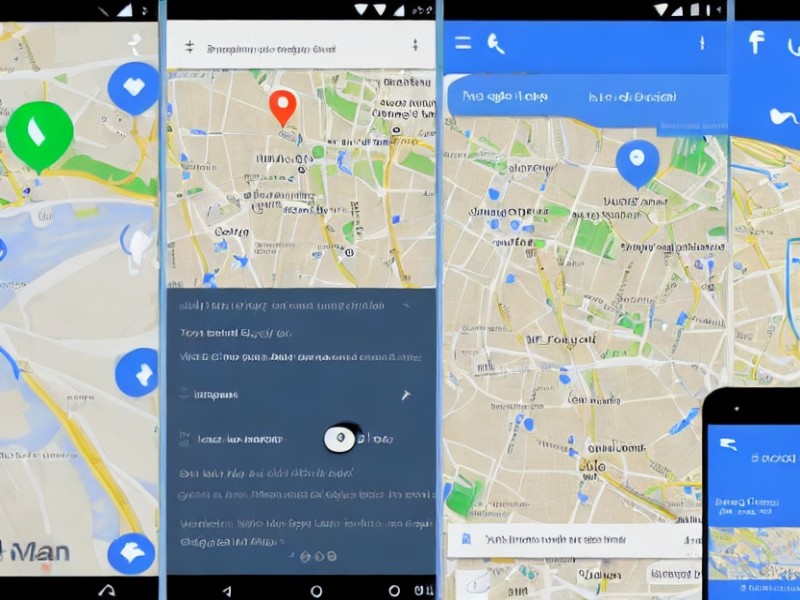
The "Google Maps" app has had offline navigation for a long time. This allows you to save information from the desired area on the map in advance and then use your smartphone as a navigator even with poor cellular signal or complete lack of internet.
Article image generated by artificial intelligence
The saved cached maps work as usual, without any additional settings. You can search for information about establishments and attractions, build routes, even between populated areas (provided they are within the downloaded region).
Only information about public transport and traffic, as well as cycling and walking routes, will be unavailable.
How to Quickly Download "Google Maps" (Universal Method)
Make sure you are connected to a stable internet connection and log into your Google account.
Open the "Google Maps" app, zoom in on the map so that the area you need fits on the screen. Type "ok maps" in the search bar.
Adjust the area if necessary, and click "Download." After a while, the map will be saved and available offline. Progress will be displayed on the screen, but the app can be minimized.
How to Download "Google Maps" for Android
Connect to Wi-Fi and find the city you need or the nearest populated area.
Open the "More" menu, select "Download Map," and click "Download."
To manage downloaded data, tap on your profile picture and select "Offline Maps." Here you can update map information, view and rename them, as well as delete them to save space.
The offline map settings, accessible by tapping the gear icon, allow you to disable periodic automatic updates and downloads of recommended areas, as well as specify which networks the app is allowed to use for downloading - only Wi-Fi or both Wi-Fi and cellular.
How to Download "Google Maps" for iPhone
Make sure your smartphone is connected to the internet and find the desired location on the map using the search function. Swipe left in the pop-up menu and tap the "Download Offline Map" button.
Set the desired zoom level of the map fragment and click "Download." After a while, the data will be saved. The app can be minimized before this happens.
Later, you can easily find all cached data in the "Account" → "Offline Maps" menu. Areas can be updated, renamed for convenience, or deleted to save space if there are many maps.
The settings also allow you to disable automatic downloading of recommended maps.
We and selected third parties use cookies or similar technologies for technical purposes and, with your consent, for other purposes (“basic interactions & functionalities” and “measurement”) as specified in the Cookie policy.
You can freely give, deny, or withdraw your consent at any time.
You can consent to the use of such technologies by using the “Accept” button. By closing this notice, you continue without accepting.
 TGLIST.COM.UA
Comments
No comments
Add Comment